Showing posts with label root. Show all posts
Showing posts with label root. Show all posts
Monday, September 23, 2013
How to Root Galaxy Note 8 0 LTE Canadian SGH I467M on Android 4 1 2 Jelly Bean Firmware

The Canadian owners of Samsung Galaxy Note 8.0 LTE SGH-I467M who wish to root their devices, may follow the tutorial below.
This tutorial uses CF-Auto-Root file released by recognised XDA Developers, Chainfire. The CF-Auto-Root file allowing Galaxy Note 8.0 users to root their devices easily without depending on the firmware. It completely supports Android 4.1.2 Jelly Bean and future firmware as well. Head over to the CF-Auto-Root main thread to learn more about the root method.
Disclaimer: Rooting voids the warranty of your device. We and the developer of this rooting procedures shall not be held responsible if any undesirable outcomes may happen to your device. use of this root guide is solely at your own risk!
Pre-requisites
1. Install USB Drivers for Samsung Galaxy Note 8.0 on the computer.
2. Enable USB Debugging Mode on the phone by navigating to Settings >> Developer Options.
3. Make a backup of all your important data before following the guide.
4. Ensure the battery of the phone is charged more than 80 percent.
5. The CF-Auto-Root file works only on Samsung Galaxy Note 8.0 LTE SGH-I467M. Applying this to any incorrect variant might brick the device. Verify the model number of the Galaxy Note 8.0 by navigating to Settings >> About Phone.
File Required
1. CF-Auto-Root (CF-Auto-Root-konalte-konaltexx-gtn5120.zip)
Note: Its actually designed for the international version of Galaxy Note 8.0 LTE GT-N5120, but tested working on Galaxy Note 8.0 LTE SGH-I467M as well.
2. Odin 3.07
Steps to Root Galaxy Note 8.0 LTE SGH-I467M Running on Android 4.1.2 Jelly Bean Firmware
Step 1: Extract CF-Auto-Root and Odin 3.07 files using winrar/7zip/winzip or any other extracting tool.
Step 2: Switch off the Galaxy Note 8.0. Then boot the device into Download Mode by pressing and holding Volume Down, Home and Power buttons together until a construction Android robot icon with a warning triangle appears on screen. Now press the Volume Up button to enter Download Mode.
Step 3: Launch Odin on the computer as an Administrator.
Step 4: Connect the Galaxy Note 8.0 to the computer using USB cable while it is in the Download Mode. Wait until Odin detects the device. When the device is connected successfully, the ID: COM box will turn blue with the COM port number. Additionally, the successful connected will be indicated by a message saying Added.
Note: If the Added message does not appear, then try re-install USB drivers or changing the port on the computer.
Step 5: In Odin, click the PDA button and select the CF-Auto-Root-konalte-konaltexx-gtn5120.tar.md5 file.
Step 6: Verify that Auto Reboot and F.Reset Time checkboxes are selected in Odin. Also, ensure the Re-Partition option is not selected.
Step 7: Double-check and click Start button in Odin. The installation process will now begin.
Step 8: Once the installation process is completed, your phone will restart and soon you will see a PASS message with green background in the left-most box at the very top of the Odin. You can now unplug the USB cable to disconnect your device from computer.
Samsung Galaxy Note 8.0 LTE SGH-I467M running on Android 4.1.2 Jelly Bean firmware is now rooted successfully. You can now install any app that requires root permission. Verify the root status of the device by downloading Root Checker app from Google Play Store.
Thanks to all fellas at XDA who first tried out this rooting technique. This method was originally posted via XDA-Developers original thread.

Sunday, September 22, 2013
How to Root Galaxy Note 2 N7100 on Android 4 1 2 XXDME1 Jelly Bean Firmware

This tutorial uses CF-Auto-Root file released by recognised XDA Developers, Chainfire. The CF-Auto-Root file allowing Galaxy Note 2 users to root their devices easily without depending on the firmware. It completely supports Android 4.1.2 Jelly Bean and future firmware as well.
Disclaimer: Rooting voids the warranty of your device. We and the developer of this rooting procedures shall not be held responsible if any undesirable outcomes may happen to your device. use of this root guide is solely at your own risk!
Pre-requisites
1. Install USB Driver for Samsung Galaxy Note on the computer.
2. Enable USB Debugging Mode on the phone by navigating to Settings >> Developer Options.
3. Make a backup of all your important data before following the guide.
4. The Galaxy Note 2 should be factory unlocked and not locked to any particular carrier.
5. Ensure the battery of the phone is charged more than 80 per cent.
6. The CF-Auto-Root file works only on Samsung Galaxy Note 2 N7100. Applying this on any incorrect variant will brick the device. Verify the model number of the Galaxy Note 2 by navigating to Settings >> About Phone.
File Required
1. CF-Auto-Root for Galaxy Note 2 N7100 (CF-Auto-Root-t03g-t03gxx-gtn7100.zip)
2. Odin 3.07
Steps to Root Galaxy Note 2 N7100 on Android 4.1.2 XXDME1 Jelly Bean Firmware
Step 1: Extract downloaded CF-Auto-Root zip file and you will find a .tar.md5 file within it.
Step 2: Extract Odin zip file and you will get Odin3 v3.07.exe along with few other files.
Step 3: Power off your phone. Wait 5-6 seconds for vibration to confirm complete switch off.
Step 4: Boot the device into Download Mode by pressing and holding Volume Down + Home buttons together and then press the Power button until the device turns on. Now press the Volume Up button to enter Download Mode.
Step 5: Run Odin on the computer as an Administrator.
Step 6: Connect the Galaxy Note 2 to the computer using USB cable while it is in the Download Mode. Wait until Odin detects the device. When the device is connected successfully, the ID: COM box will turn yellow with the COM port number. Additionally, the successful connected will be indicated by a message saying Added. If Odin fails to detect the device then re-install USB driver.
Step 7: Select these files in Odin at respective buttons:
- Click the PDA Button, and select CF-Auto-Root-t03g-t03gxx-gtn7100.tar.md5.
Step 9: Verify everything suggested in Step 7 and Step 8 is done correctly. Then hit the START button to begin the flashing process.
Step 10: Once flashing completed, your phone will restart and soon you will see a PASS message with green background in the left-most box at the very top of the Odin. You can now unplug the USB cable to disconnect your device from computer.
Your Samsung Galaxy Note 2 N7100 running on Android 4.1.2 XXDME1 Jelly Bean firmware is now rooted successfully. You may now install any app that requires root permission.
Thanks to all fellas at XDA who first tried out this rooting technique. This root method was originally posted via XDA-Developer original thread.
Wednesday, September 18, 2013
How To Easily Root HTC Wildfire S
At This time i will share another tutorial to root smartphone. And this time i will show the tutorial for HTC Wildfire S. Root has many definitions. Because the term is related to Android smartphones, so the definition in the question is a method or process performed by the user to gain full access to you HTC Wildfire, or commonly known as "SuperUser". So users can make modifications as he wishes. Includes full acces to set your applications and user interface (UI) that will. Im not going to tell you more about this ROOT definition. Since I assume the reader has understood, including the risks that may occur.
The main discussion in this article is about how to easily ROOT the HTC Wildfire S (WFS). If previousky to ROOT Wildfire S should use XTC-Clip, after the release from HTC Dev Unlock Bootloader, then root WFS no longer need XTC-Clip tool. To do ROOT on WFS there are actually several ways, including using the "HTC Supertool" and Wildfire S Manager . Android is good
But this time I will explain different ways to root this WFS. But its up to you which one you will use. beacause basicly it is similar
DOWNLOAD The File
To Download the requiremnts file go here ( password : tutorialfor-android.blogspot.com)
Okay after you have prepare the requirements lets go ahead to the tutorial
How To Root HTC WildFire
Finish hope be usefull. Any questions, please leave a comment. Next Tutorial will explain how to Install Custom ROM on HTC Wildfire.
The main discussion in this article is about how to easily ROOT the HTC Wildfire S (WFS). If previousky to ROOT Wildfire S should use XTC-Clip, after the release from HTC Dev Unlock Bootloader, then root WFS no longer need XTC-Clip tool. To do ROOT on WFS there are actually several ways, including using the "HTC Supertool" and Wildfire S Manager . Android is good
But this time I will explain different ways to root this WFS. But its up to you which one you will use. beacause basicly it is similar
Requirements
Things that need to be prepared include:- HTC Sync
- Data Cables
- Wildfire S Manager
- Download File root.zip
- You Have to Unlock Bootloader first
- Download Wildfire S manager
DOWNLOAD The File
To Download the requiremnts file go here ( password : tutorialfor-android.blogspot.com)
Okay after you have prepare the requirements lets go ahead to the tutorial
How To Root HTC WildFire
- OK the first thing you must to do is to install ClockWorkMod (CWM) Recovery 5.0.2.6, it will be used to flashing ROMs and updates including root. To install CWM download files Wildfire S Manager on link above
- Before you install CWM, make sure your phone is in USB debugging enabled. By enter to menu Settings> Applications> Development> Check USB debugging.
- After that run Wildfire S Manager that you have downloaded before. It will appear as shown below.

- Continue to press enter and the display appears as shown below.
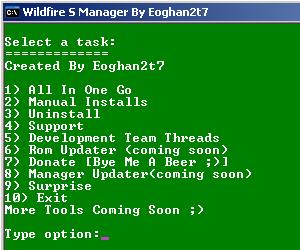
- Next plug the data cable to the PC and to your device, then type the number 1 (All In One Go) and ENTER. Then will look like the picture below.

- Choose number 1 (Root With ClockWorkMod.) Press ENTER. Then it will look like the following image in the computer screen. Leave it alone, follow until the process is complete.

- Then look at the change of your phone display, wait a few moments until the display show like the screenshot below

- At this stage the installation process of CWM Recovery is complete. the next steo is root process
- The next step is to install the file Root.zip file. If your device condition was entered in CWM Recovery, root can be directly performed. But if not, it should go through HBOOT.
- To enter HBOOT by press the Volume down + Power. When it gets into the HBOOT as shown below. Select Recovery. Wait a few moments to look CWM Recovery.

- After entering to the CWM Recovery, its time to copy the root.zip file to the SD by go to mount and storage. Then It will show the drive where we enter this root.zip file.
- Once the file is copied, unmount again
- Then select install zip form sd card. Find root.zip file and install.
- Wait a few moments, Until the process is finished
- Boot your WFS. Check out the menus. If there is an application called SuperUser the root process is successfully finished.
Finish hope be usefull. Any questions, please leave a comment. Next Tutorial will explain how to Install Custom ROM on HTC Wildfire.
Monday, September 16, 2013
How to Root Galaxy S Advance I9070 on Android 4 1 2 DXAMD1 Jelly Bean Firmware

Samsung Galaxy S Advance I9070 users who have already updated their devices with Android 4.1.2 DXAMD1 Jelly Bean firmware, may root their devices using the tutorial below.
Disclaimer: Rooting voids the warranty of your device. We and the developer of this rooting procedures shall not be held responsible if any undesirable outcomes may happen to your device. use of this root guide is solely at your own risk!
Pre-requisites
1. Install USB Driver for Samsung Galaxy S Advance on the computer.
2. Enable USB Debugging Mode on the phone.
3. Make a backup of all your important data before following the guide.
4. The Galaxy S Advance should be factory unlocked and not locked to any particular carrier.
5. Ensure the battery of the phone is charged more than 80 per cent.
6. The root file works only on Samsung Galaxy S Advance I9070 running on Android 4.1.2 DXAMD1 Jelly Bean firmware. Applying this on any incorrect variant will brick the device. Verify the model number of the Galaxy S Advance by navigating to Settings >> About Phone.
Steps to Root Galaxy S Advance I9070 on Android 4.1.2 DXAMD1 Jelly Bean
Step 1: Download Jelly Bean Root Package for Samsung Galaxy S Advance to the computer.
Step 2: Connect the phone to the computer using USB cable.
Step 3: Copy the downloaded root.zip file to the external SD card of the phone.
Step 4: Unplug the USB cable from the phone to disconnect it from the computer and then turn it off
Step 5: Boot the Galaxy S Advance into stock recovery mode by pressing and holding Volume Up, Home and Power buttons together until the device turns on. In the recovery mode, use the Volume keys to scroll between the options and the Power button to select the desired option.
Step 6: Navigate to and select install update from external sdcard then select choose zip from sdcard. Then browse to the root.zip file which was earlier copied to the SD card
Step 7: Select the root.zip file and confirm installation. The flashing process should start now.
Step 8: When the installation process is completed, reboot the phone by selecting reboot system now from recovery menu.
Once the Samsung Galaxy S Advance boots up, it should be rooted successfully on Android 4.1.2 DXAMD1 Jelly Bean official firmware. You may now install any app that requires root permission.
Thanks to all fellas at XDA who first tried out this rooting technique. This root method was originally posted via XDA-Developers original thread.
Sunday, September 8, 2013
How to Root Galaxy Mega 5 8 I9152 on Android 4 2 2 Jelly Bean Firmware

Samsung Galaxy Mega 5.8 I9152 users who wish to root their devices running on Android 4.2.2 Jelly Bean, may follow our step-by-step guide.
Disclaimer: Rooting voids the warranty of your device. We and the developer of this rooting procedures shall not be held responsible if any undesirable outcomes may happen to your device. use of this root guide is solely at your own risk!
Pre-requisites
1. Install USB Drivers for Samsung Galaxy Mega 5.8 on the computer.
2. Enable USB Debugging Mode on the phone by navigating to Settings >> Developer Options.
3. Make a backup of all your important data before following the guide.
4. The Galaxy Mega 5.8 should be factory unlocked and not locked to any particular carrier.
5. Ensure the battery of the phone is charged more than 80 percent.
6. The Root Package works only on Samsung Galaxy Mega 5.8 I9152. Applying this to any incorrect variant might brick the device. Verify the model number of the Galaxy Mega 5.8 by navigating to Settings >> About Phone.
File Required
1. Root Package (Mirror Link) for Galaxy Mega 5.8 I9152 (I9152-JB_4.2.2-boot.tar)
2. Odin 3.07
Steps to Root Galaxy Mega 5.8 I9152 Running on Android 4.2.2 Jelly Bean Firmware
Step 1: Extract Odin 3.07 file using winrar/7zip/winzip or any other extracting tool.
Step 2: Switch off the Galaxy Mega 5.8. Then boot the device into Download Mode by pressing and holding Volume Down, Home and Power buttons together until a construction Android robot icon with a warning triangle appears on screen. Now press the Volume Up button to enter Download Mode.
Step 3: Launch Odin on the computer as an Administrator.
Step 4: Connect the Galaxy Mega 5.8 to the computer using USB cable while it is in the Download Mode. Wait until Odin detects the device. When the device is connected successfully, the ID: COM box will turn blue with the COM port number. Additionally, the successful connected will be indicated by a message saying Added.
Note: If the Added message does not appear, then try re-install USB drivers or changing the port on the computer.
Step 5: In Odin, click the PDA button and select the I9152-JB_4.2.2-boot.tar file.
Step 6: Verify that Auto Reboot and F.Reset Time checkboxes are selected in Odin. Also, ensure the Re-Partition option is not selected.
Step 7: Double-check and click Start button in Odin. The installation process will now begin.
Step 8: Once the installation process is completed, your phone will restart and soon you will see a PASS message with green background in the left-most box at the very top of the Odin. You can now unplug the USB cable to disconnect your device from computer.
Note: If you can not update Superuser directly from the Google Play Store, here is the latest Superuser.apk. Just install it manually on the Galaxy Mega 5.8.
Samsung Galaxy Mega 5.8 I9152 running on Android 4.2.2 Jelly Bean firmware is now rooted successfully. You can now install any app that requires root permission. Verify the root status of the device by downloading Root Checker app from Google Play Store.
Note: Tested working on Galaxy Mega 5.8 I9152 with Android 4.2.2 XWUAMG1 Jelly Bean firmware, should work with other Jelly Bean firmware. Try it and let us know.
Click here to know How to Update Galaxy Mega 5.8 I9152 with official Android 4.2.2 XWUAMG1 Jelly Bean firmware.
Subscribe to:
Posts (Atom)